Select Version of EA Desktop:
Besides having the ability to add files to a catalog, you can also import records using a Microsoft Excel file.
To import records:
-
In the Catalog Properties panel, double-click on a catalog to open it in a new tab.
-
Once the catalog is open, select a file or multiple files in the Files panel.
-
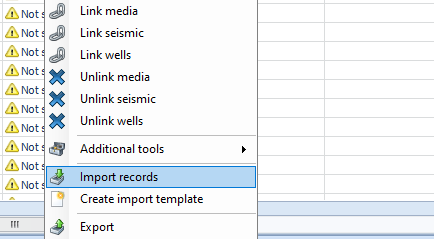
Right-click the selected files to open the context menu. Select Import records.
-
When the file explorer opens, navigate to the location of the file and select it.
-
Click Open. The import records window opens. The window is split into 2 tabs:
Setup Import: This tab is used to Map the columns of the Excel file to the columns in the files grid.
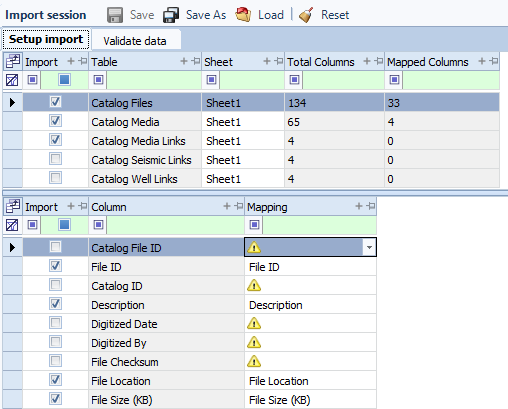
On the top half of the window select the sheet in the excel file you want to use for the field. You can use more than one sheet, just select it from the drop-down in the sheet column.
Note:You can also restrict which sheet the data is imported from by selecting the Single Sheet checkbox, located in the right corner.
The column headings will map to the appropriate column on the grid in the bottom half.
Note:If you want to save your setup and import the data later, click Save. Click Load to recall the settings and continue the import.
You can confirm the data by going to the Validate data tab.
-
Once you have imported and validated the data, click Import. The window will close and the records will be added to the files panel.